2010年8月31日星期二

iPod Compatible Video

This article is divided into four parts separately introduce what is iPod Compatible Video, which video format is better for Apple iPod Video, is my video iPod compatible and how to make the video compatible with your iPod.

Part One: What is iPod Compatible Video?
Part Two: Which video format is better for Apple iPod video?
Part Three: Is My Video iPod Compatible?
Part Four: How to make the video compatible with your iPod?

Part One: What is iPod Compatible Video?
Firstly, I will introduce you what is iPod Compatible Video, iPod Nano Compatible Video such as iPod Video MP4, iPod Video H 264, the specifications page lists the following:
Apple iPod video specifications from their official website:
H.264 video, up to 1.5 Mbps, 640 by 480 pixels, 30 frames per second, Low-Complexity version of the H.264 Baseline Profile with AAC-LC audio up to 160 Kbps, 48kHz, stereo audio in .m4v, .mp4, and .mov file formats; H.264 video, up to 2.5 Mbps, 640 by 480 pixels, 30 frames per second, Baseline Profile up to Level 3.0 with AAC-LC audio up to 160 Kbps, 48kHz, stereo audio in .m4v, .mp4, and .mov file formats;
MPEG-4 video, up to 2.5 Mbps, 640 by 480 pixels, 30 frames per second, Simple Profile with AAC-LC audio up to 160 Kbps, 48kHz, stereo audio in .m4v, .mp4, and .mov file formats.

That’s a little confusing, but there’s only a few numbers you’ll need to remember for each format.

iPod H.264 Video formatThe highest video bitrate with the H.264 codec is 768 kilobits per second. The biggest picture size for your H.264 movie is 320 pixels wide by 240 pixels high, the exact dimensions of your iPod’s screen. Your iPod can play H.264 video at framerates up to 30 frames per second. Every one of the applications that we’ll be using encodes with the Baseline Profile. Your audio needs to be encoded as AAC audio up to 160 Kbps, 48 kHz, and it can be in either stereo or mono. As long as you follow all the guidelines, your movie can be a QuickTime movie or an MPEG-4 movie file.

iPod MPEG-4 Video formatYour other option, MPEG-4 video, supports a much higher bitrate than H.264 video - 2,500 kilobits per second. Using higher bitrates will also create larger files. The result: you’ll have less space for additional songs and movies. The biggest picture size for your MPEG-4 video is 480 pixels wide by 480 pixels high - three times as many pixels as your iPod’s screen is capable of displaying. Your iPod will shrink the picture proportionally so that everything fits on the screen. Again, the iPod can play videos up to 30 frames per second and our audio and file format options are the same as H.264 video.

Part Two: Which video format is better for Apple iPod video?
That’s a tough question. H.264 is arguably better because it offers high quality and a much smaller file size when compared to MPEG-4. However, both formats look quite good when you encode your video at the higher supported video settings. One thing that most people will agree on is that H.264 video takes longer to encode than standard MPEG-4. This means that converting a two hour movie to iPod video can take considerably longer using the H.264 codec (especially with QuickTime Pro’s pokey Export: Movie to iPod video option). Still, I prefer the H.264 codec in most instances.

Part Three: Is My Video iPod Compatible?
Some of the video files that you download from the web or from file sharing networks like BitTorrent may be iPod compatible - even if they’re not marked as such.

The easiest way to determine whether a video can be played on your iPod is to open the file in QuickTime and select Window: Show Movie Info. In most cases your video should be iPod-ready if the format is H.264 or MPEG-4, the audio is AAC, and the size of your video is 320 x 240 (or smaller) for H.264 or 480 x 480 (or smaller) for MPEG-4. Also, look at the data rate and make sure it’s not over 900 kbits/sec for H.264 or 2600 kbits/sec for MPEG-4.
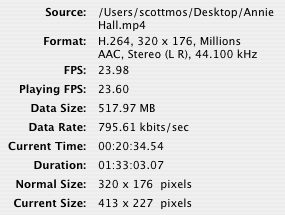
QuickTime info for iPod Video

Part Four: How to make the video compatible with your iPod?
If you have QuickTime Pro ($30 and worth every penny) or the latest version of iTunes (free!), this is, by far, the easiest conversion that we’ll talk about.

In iTunes, after you’ve added your video to the library, right click it. Select Convert Selection for iPod. iTunes will let you know if your video is already in the correct format. If it’s not, your video will slowly be converted to an H.264 video.

UPDATE: I’ve heard several complaints of iTunes creating iPod videos without sound. You should probably avoid using iTunes to convert your videos.

In QuickTime Pro, open your movie and, in the file menu, select Export… and in the export drop-down, select Movie to iPod (320 x 240) and click Save. QuickTime will create an optimized H.264 video with AAC audio.

You may want to go pour yourself a cup of tea or take a nap. If your file is large, QuickTime’s slow conversion process can take several hours.

If you’re an inexperienced user, I recommend using QuickTime Pro or iTunes because they’re absolutely foolproof. However there are other much faster, more powerful applications for converting your videos. Read on!

Don’t have QuickTime Pro? Aiseesoft iPod Video Converter!
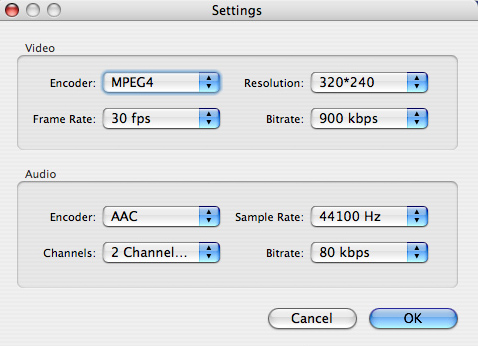
Aiseesoft iPod Video Converter supports so comprehensive video formats including converting MPG, MPEG, MPEG2, VOB, MP4, M4V, RM, RMVB, WMV, ASF, MKV, TS, MPV, AVI, 3GP,3G2, FLV, MPV, MOD, TOD to iPod Video MP4, iPod Video H 264. You can customize your own output video by the settings function. For example, if you want a high quality video you can raise the values of Video Biterate, Audio Biterate and Audio Sample Rate, if you want a smaller file you can reduce the value.
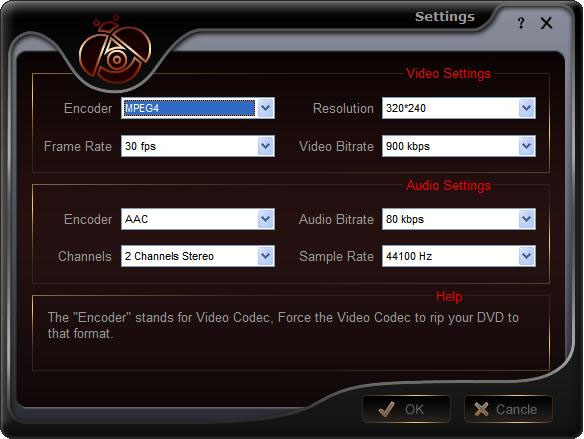
Settings

If you want to make your DVD compatible with your iPod and even transfer your iPod video to Computer, you can choose Aiseesoft DVD to iPod Suite which is an all-in-one solution to convert DVD to iPod Video MP4, iPod Video H 264 and convert video to iPod Video MP4, iPod Video H 264. Moreover, it can transfer video from iPod to computer. You don’t need to worry about losing anything.
For Mac user, you can choose Aiseesoft iPod Video Converter for Mac and Aiseesoft DVD to iPod Suite for Mac.

2010年8月30日星期一

How to reformat an iPod

This is a tutorial about how to reformat Windows Formatted iPod for Mac and how to reformat Mac Formatted iPod for Windows. There are 2 parts:
Part 1. How to reformat Windows Formatted iPod for Mac
Part 2. How to reformat Mac Formatted iPod for Windows

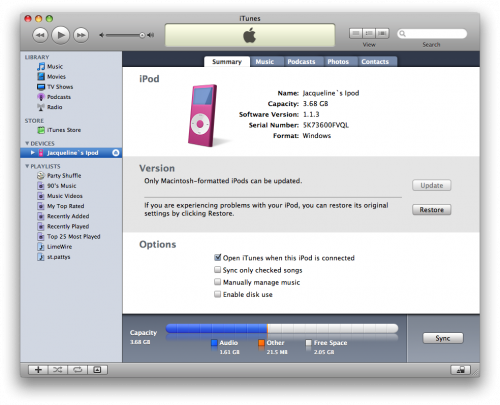
The way you see if an iPod is Mac or Windows-ready is to go to Settings --> About and scroll to the bottom of the screen. If it's formatted for Mac OS X, then the last item will be the serial number of the iPod. If it's Windows-ready, then after the serial number will be "Format: Windows". Simple enough, if a bit obscure.
If you wish to keep the songs you have on the iPod, you must first follow this tutorial to backup your iPod files to your computer.

Part 1, How to reformat Windows Formatted iPod for Mac
Step 1 Launch iTunes by selecting its icon in the dock
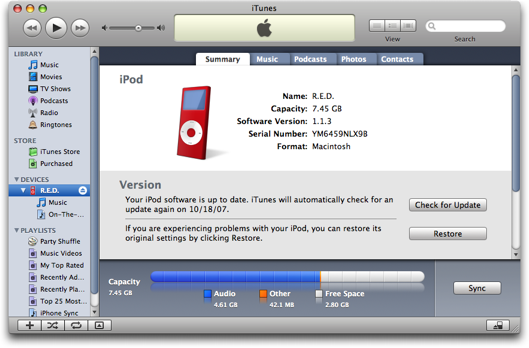
Step 2 Connect your iPod to the computer. Once it shows up in iTunes press the Restore button under the Summary Tab.

reformat windows formatted iPod

Step 3 A popup will appear warning you that all the songs on your iPod will be erased. Click the Restore button.
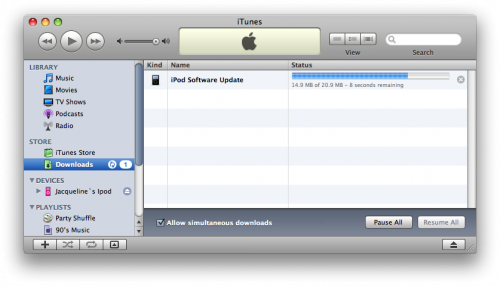
Step 4 An iPod Software Update window will open. Click the Next button.
Step 5 Click the Agree button to accept the license agreement.
Step 6 iTunes will now go and download the latest firmware for your iPod.

reformat windows formatted iPod

Step 7 Once installation begins it will ask you for an Administrator's username and password. Enter this information then click the OK button.
Step 8 iTunes will then format and update your iPod after which it will reboot.
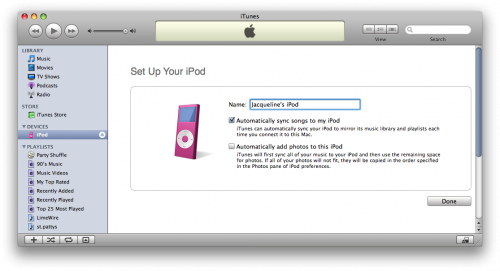
Step 9 Once complete you will be asked to name your iPod. Do this then press the Done button.

reformat windows formatted iPod

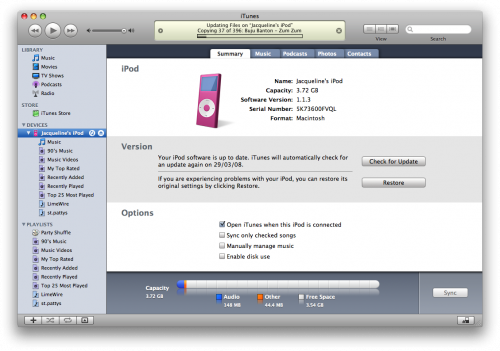
Step 10 iTunes will now automatically begin syncing your library to the iPod!

reformat windows formatted iPod

Part2. How to reformat Mac Formatted iPod for Windows
Step 1, Download the latest version of iTunes
Your first step should be to ensure that you have the very latest version of iTunes. You can do that by going to Download iTunes. Install that, and when you hook up your iPod, you should see it show up in iTunes, then when you click on the iPod on the left side of iTunes, you'll get to the summary screen.

iTunes

Step2 , Click the "Restore" button and you should be prompted to choose between four different options:
Restore Option 1: Restore - Restores with same iPod Software version already on iPod.
Restore Option 2: Use Same Version - Restores with same iPod Software version already on iPod even though a newer version is available.
Restore Option 3: Use Newest Version - Restores with the latest iPod Software available.
Restore Option 4: Restore and Update - Restores with the latest iPod Software available.

2010年8月29日星期日

How to use Mac TS converter to convert TS to MP4, MOV, etc on Mac OS X

What is TS?
Transport stream(TS, TP, MPEG-TS, or M2T) is a communications protocol for audio, video, and data which is specified in MPEG-2 Part 1, Systems (ISO/IEC standard 13818-1). Its design goal is to allow multiplexing of digital video and audio and to synchronize the output. Transport stream offers features for error correction for transportation over unreliable media, and is used in broadcast applications such as DVB and ATSC. It is contrasted with program stream, designed for more reliable media such as DVDs.
TS format is a container format that encapsulates pocketsize elementary streams and other data.
Important elements of a transport stream: Packet, PID, Programs, Program Specific Information (PSI) , 1 PAT , PMT , PCR , Null packets

How to play TS files on Mac?
You need media player to play TS files on Mac OS X:
VLC media player is a highly portable multimedia player for various audio and video formats (MPEG-1, MPEG-2, MPEG-4, DivX, mp3, ogg, ...) as well as DVDs, VCDs, and various streaming protocols. It can also be used as a server to stream in unicast or multicast in IPv4 or IPv6 on a high-bandwidth network. It supports Mac, linux, Windows.
How to convert TS to MP4, AVI,MOV, etc on Mac?
You need a video converter for Mac to convert TS to MP4, AVI, MOV, etc on Mac. Then you can put them on iPod, iPhone, PSP, Xbox 360, iMove, other potable players.
Step 1: Download TS Video Converter for Mac:
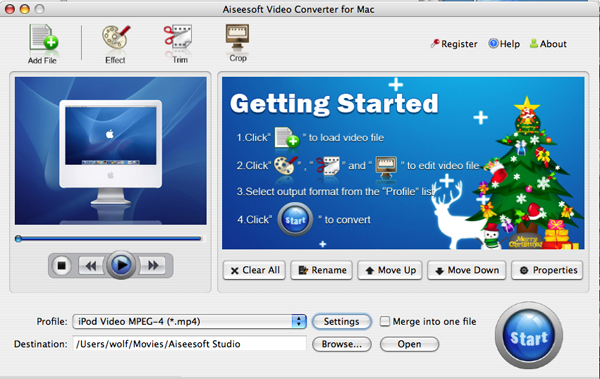
We recommend you Aiseesoft Video Converter for Mac which can convert TS to MP4, Convert TS to AVI perfectly. This Mac TS Video Converter also can extract audio from TS and Convert to MP3, M4A, etc. Compared with other video converters, this TS video converter for Mac provides you with better output quality, more advanced functions and higher conversion speed. You can download free trial Version here: for Mac intel users, for Mac PowerPC users. Then install and run this program. The trial version should be fully functional for what you want to do.
Step 2: Load the TS files you want to convert

Video Converter for Mac

Click the "Add File" button to browse your computer hard disc and add the .TS files you want to convert to the program.
Step 3: Output Settings
After you added TS files, you can select an output format for each video file and specify a directory on your computer to save the output files.
The TS Converter for Mac supports comprehensive video formats including AVI, MPEG, WMV, MP4, XviD, 3GP, FLV, etc.
If you don't know what formats your device supports, you can just select the format according to the device name. Of course, if you don't want to use the default video and audio encoding settings, just click the "Settings" button to customize these settings.

Video Converter for Mac - settings

Step 4: Edit your TS files
This TS Video Converter for Mac set video brightness, contrast, saturation, crop video, trim video/audio and even merge multiple files into one file.

Step 5: Start the conversion
Click the Convert button to start conversion and then you can just go out for a walk or take a nap, and the conversion may have been finished when you come back: )

Modifications of transport stream specification for random-access media (M2TS)
Transport Stream was designed for tape and broadcast, but it required modifications for usage with random-access media devices like new generation of digital camcorders that record onto DVD disks, hard drives or solid-state memory cards.
Random-access based systems may save data packets into a temporary buffer if a storage device is not ready, for example on device startup. Packets are written out of order, and to keep track of them, a 4-byte timecode (TC) is added to standard 188-byte packets. The result is a 192-byte packet. This is what is informally called M2TS stream. Sony calls it "BDAV MPEG-2 transport stream". JVC calls it TOD (possibly an abbreviation for "Transport stream on media") when used in HDD-based camcorders like GZ-HD7.[9] M2TS transport stream is also used for AVCHD video files, which often have MTS extension.

2010年8月27日星期五

Netflix Premieres on the iPhone

It’s been nearly three months since Netflix CEO Reed Hastings debuted the company’s iPhone app at Apple’s Worldwide Developers Conference, and this morning it finally shipped (iTunes link). Beginning today, paying Netflix (NFLX) subscribers can view the company’s “Watch Instantly” library on their iPhones and iPod touches, as well as on their iPads. Like its larger sibling, it’s a slick little app that extends a respectable and growing video-on-demand service to Apple’s (AAPL) smaller iOS devices.

2010年8月25日星期三

And With an Arrest, Trial and Conviction, We Can Make an Album

Sign o’ the times. Making its debut on the Billboard Hot 100 hit list at No. 89–just below Justin Bieber and Young Jeezy, and a spot above Brad Paisley–is an Internet interloper: The “Bed Intruder Song,” the latest in the Auto-Tune the News series from the Gregory Brothers. It is undoubtedly the catchiest song ever adapted from a TV interview of a man who thwarted an attempted rape. The video became an immediate YouTube hit when it was posted a few weeks ago, and hot sales of an expanded version in the iTunes music store propelled the song onto the mainstream charts.

2010年8月24日星期二

Japan’s Unsung Tech Heroes

Once synonymous with cool gadgets, Japanese consumer-electronics brands like Sony (SNE) and Panasonic (PC) are now scrambling to keep up with Samsung Electronics and other fast-growing Asian rivals.

But in the less glamorous world of tiny electronic parts inside gadgets, Japan still commands a large market share. Few consumers recognize the makers of the so-called passive components, a category that doesn’t include semiconductors. But they are the unsung heroes in Japan’s otherwise struggling electronics industry.

According to Japan Electronics and Information Technology Industries Association, the country’s electronic parts makers currently hold 40 percent of the global market based on the value of output. The category “electronic parts” does not include semiconductors.

You may have never heard of Nidec, but your PCs and cameras probably carry its components. The Kyoto-based company, which made headlines last week with a U.S. acquisition, controls about 80 percent of the global market for precision motors in computer hard drives, and about 70 percent of the market for digital camera shutters.

Read the rest of this post on the original site

2010年8月23日星期一

How to sync and put cusomized ringtone on iPhone

There are also some other ways to convert audio to iPhone ringtone and sync it to iPhone with iTunes, but I think these are a little complicated and users may be at a loss with such ways.

Here I recommend iPhone PC Suite, an almighty iPhone manager that can let you manage phone book, software, media and other files between iPhone and computer without iTunes easily.

But before using this tool, make sure your iTunes installed and has been connected with iPhone once before (Then you will never need not run iTunes when you use iPhone PC Suite to manage your iPhone).And when the first time you connecting iPhone, it will install PhoneDaemon on your iPhone, don’t worry it is green software and will do nothing harm.

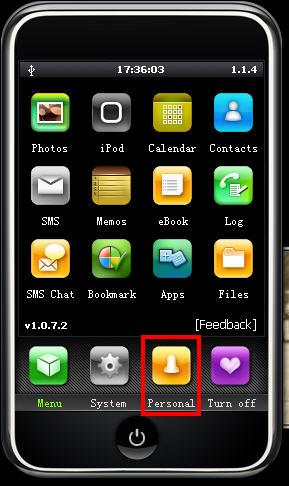
Now I will show you how to sync the converted iPhone ringtone to iPhone without iTunes. Connect you iPhone to computer, double click” iPhone PC Suite” to start iPhone PC Suite, the program will scan you iPhone automatically for a short while. Then click button “Personal” on the main menu, select ”ringtone”.

put ringtong on iPhone

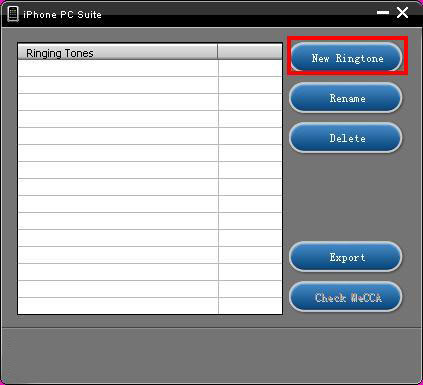
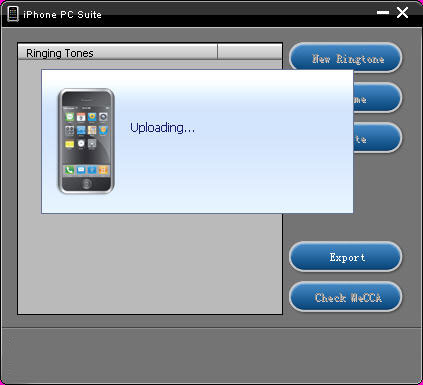
Click “New Ringtone” to locate the converted iPhone ringtone.put ringtong on iPhone

Select your target iPhone ringtone, then it will upload the ringtone to iPhone automatically.

put ringtong on iPhone - ringtong loading

Then you can select your favorite audio file and set it as your iPhone ringtone on iPhone. Click “setting”->”Sound”->”Ringtone”, the converted ringtone is listed on column “Customize”. Now you can enjoy the fun of your unique iPhone ringtone!
This free iPhone PC Suite also has other powerful functions, we will share them later.

Previous part: How to convert DVD, Movie, Music to iPhone ringtone and put ringtone on iPhone?

2010年8月22日星期日

How to copy DVD to ISO file for Mac

ISO file is an unattached file format (like RAR and ZIP): it merges a series of files into one single file according to a definite format. So they are stored in an uncompressed format., then it is more practicable to to transfer it over the Internet or via a LAN connection.

There lists the capabilities of DVD Copy for Mac on ISO file:
Copy: the ability to copy DVD to ISO file for Mac.
Burn: the ability to burn ISO file to an optical Disc.
Extract: the ability to copy the content of ISO file to a hard disc.

Free download this DVD Copy for Mac to have a try!

Buy NowFree trial(Intel PPC)

Let’s take the example: How to copy DVD to ISO file for Mac

Click “Full Disc ” button or “Main Movie Mode” button on the main interface to select the copy DVD mode.

Select the source: Select the DVD-video disc here to copy your DVD file.

Choose the target: Choose the ISO image target here for copying your DVD files as ISO file.

Start to Copy:Click the “Start” to begin your DVD copying to ISO file on Mac.
learn more on: how to edit DVD file or ISO file with DVD Copy for Mac.

2010年8月18日星期三

How to play Videos on Xbox 360

How Can I Watch Videos on my Xbox 360?
There are two ways you can watch videos on your Xbox 360:

Watch Video on Xbox 360

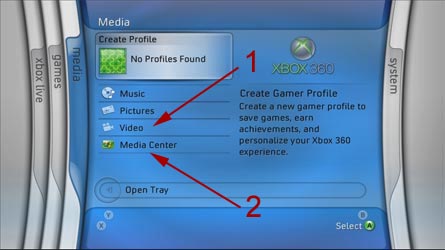
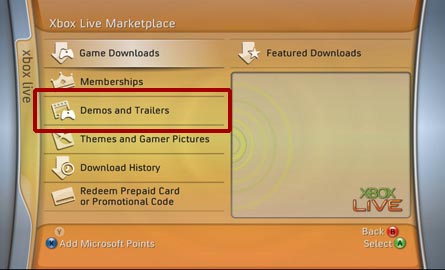
1. Download video from the Xbox Live Marketplace. Some of these videos are available for free while you may have to pay for others. Microsoft is in control of what videos are available through the Xbox Live Marketplace.

Download Xbox 360 video

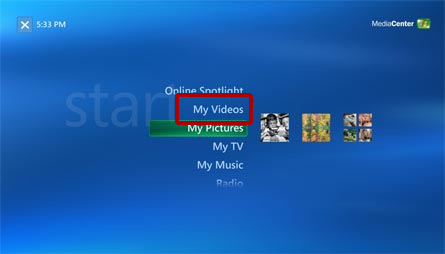
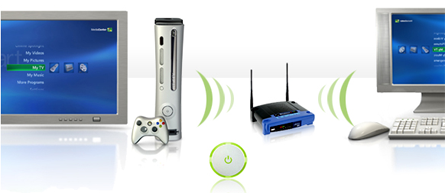
2. Stream videos from your Windows Media Center PC by using your Xbox 360 as a Media Center Extender. You are in control of what videos you want to watch, however there are restrictions on what kind of video you can playback. See below for more details.

Watch Xbox 360 video

Is there any way I can play my own videos WITHOUT a Media Center PC?.
No. Without a Windows XP Media Center PC, you can only play back the movies Microsoft offers in the Xbox Live Marketplace.

Do I need additional hardware/software to playback video on my Xbox 360?
Yes. You will either need the optional Xbox 360 Hard Drive to download/watch video from the Xbox Live Marketplace or you will need a PC with Microsoft Windows XP Media Center as your OS in order to stream video from your PC.

Transfer video to Xbox 360

Does it support video streaming through Windows Media Connect?
No. There are video sharing capabilities built into Windows Media Connect, however, Microsoft has chosen to ONLY allow you to share Audio and Pictures through Windows Media Connect. You CANNOT stream videos through Windows Media Connect to your Xbox 360.

stream videos to Xbox 360

What kind of videos can I play using the Media Center Extender?

Microsoft Windows Media Video (WMV) 7, 8, & 9
- Maximum resolution of 1920x1080 (1080p) at 30 frames per second.
- Windows Media Audio Standard or Windows Media Audio Pro audio.
- WMV content may be Windows Media DRM-protected.
- Bitrates up to 8 Mbps.
WMV Image 1 & 2
- Maximum resolution of 800x600
MPEG-1
- MPEG-1 layer I and II audio.
MPEG-2, DVR-MS
- Maximum resolution of 1920x1080 (1080i).
- MPEG-1 layer I and II or AC-3 audio.
- Bitrates up to 19.2 Mbps.

Does it support avi? Divx? Xvid? Quicktime? H264?

No. The Media Center Extender in the Xbox 360 only supports playback of DVR-MS, MPEG-1, MPEG-2 and WMV video.

How can I watch these other (avi, divx, xvid, etc) videos on my Xbox 360?
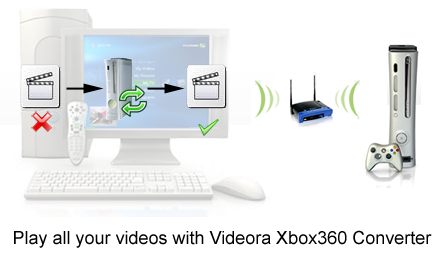
You have to convert these videos into the video formats the Xbox 360 Media Center Extender can playback. We recommend you to use Aiseesoft Total Video Converter (for Mac OS, choose video converter for Mac ) to convert all popular video formats to xbox 360 video and audio files perfectly with just a few clicks.

Play video on Xbox 360

Does the Xbox 360 support direct video streaming through Windows Sharing/Samba Shares?

No.

Can I watch DVDs through the Media Center Extender?
No, you can only watch DVDs by using the Xbox360's DVD drive.

Can I use a DVD Disc Changer through the Media Center Extender?
No. This functionality is not available in through the Xbox 360's Media Center Extender. You can only watch one DVD at a time by using the Xbox360's DVD drive.

Will My DVDs be available on the XBox 360?
"No. We did not implement the ability to remotely play back a DVD from a MCE to an XBox 360 Extender so it did not make sense to make My DVDs available. I certainly understand how cool it would be if you could put your MCE and full loaded DVD changer in a closest and use XBox 360's to watch your DVD collection from any room wirelessly but this is something that's going to have to wait until a future release." - Matt Goyer - MCE Program Manager

Can the Xbox 360 play video off the Xbox 360 Hard Drive?

Yes, but only video downloaded from the Xbox Live Marketplace or preloaded on the Xbox, not your own videos.
Can you hook up an external hard drive to the Xbox 360 and play videos off that?
No.

Recommended Products for you:
DVD to iPod Converter for Mac
It's a specially designed iPod conversion program to Convert DVD to iPod touch, iPod classic, iPod nano, convert DVD to iTunes on Leopard.
iPod Video Converter for Mac
It can convert MP4, MOV, 3GP, AVI, RM, MPEG, and FLV to iPod video with high output quality and various features.

2010年8月17日星期二

Social-Network Ad Spending Starting to Add Up

When you look at dollars spent vs. potential audience, it’s clear that advertisers haven’t exactly plunged into social media with the same abandon as Net users, but judging by the latest numbers from eMarketer, they are wading in at a quickening pace. The research outfit today boosted its estimates for U.S. social-network ad spending this year to $1.68 billion from its December forecast of $1.3 billion, with expectations that it will top $2 billion in 2011. Next year should also see U.S. spending overtaken by overseas spending. In the U.S. market, eMarketer said, Facebook will get about half those ad dollars, with MySpace’s take continuing to drop and Twitter’s poised to take off if it can show its “resonance” model of measuring advertising effectiveness works.

2010年8月15日星期日

BSkyB Challenges Skype Trademark

Tucked into Skype’s IPO filing Monday was a listing of challenges to its trademark applications around the world, and it turns out that News Corp.’s British Sky Broadcasting, known as BSkyB and marketed as Sky, has a problem with 60 percent of the letters in the Internet telephony pioneer’s “bubble” logo. “The key contention in the dispute is that the brands ‘Sky’ and ‘Skype’ will be considered confusingly similar by members of the public,” a BSkyB spokesman said. “This was supported by consumer research conducted by Sky.” The EU recently ruled in BSkyB’s favor over the logo, and Skype plans to appeal. Notes TechEye.net: “As far as we know BSkyB is not filing any legal action against the Isle of Skye.”

Where Did Demand Media’s Profits Go?

When Richard Rosenblatt talks, we listen. The man who once served as the former chief of MySpace creator Intermix Media heads one of the most heavily funded and high-profile venture-backed companies, Demand Media Inc.

Since co-founding the company in 2006, he’s built a big business with an audacious and controversial strategy to create thousands of niche content sites targeted at search engines, and to buy millions of generic Web sites with highly-trafficked domain names. In multiple interviews with various publications over the past couple of years, Rosenblatt stated that Demand Media is profitable and suggested that revenue reached about $200 million in 2009. We took his word for it, as we’re forced to do with privately held companies.

So when Demand Media filed for an IPO on Friday, we eagerly poured through the 187-page filing–only to find that while the company’s revenue last year was close to $200 million, its bottom line was deep in the red.

Read the rest of this post on the original site

2010年8月13日星期五

Where to download free iPod Videos

Free iPod Videos, Legal nano Videos, Places to get iPod, iPod nano Videos
1. The Internet Archive is great for old videos and movies. The Archive’s 256Kb MPEG4 Downloads are unfortunately not iPod-ready as previously thought. The format’s correct, but there are audio pops when played back on the iPod. You’re probably better off downloading the MPEG2 videos anyway. The 265Kb files were pretty low-res and it’s a snap to re-encode the MPEG2 files for your iPod with Aiseesoft Video Converter for Mac.
2. The Chronic..What?..cles of Narnia.
3. The iTunes Music Store’s podcast section is loaded with free videos.
4. Channel 101 and Channel 102 offer up some brilliant downloadable videos.
5. PodGuide.tv
6. Channel Frederator offers up some of the best short animations anywhere.

Illegal Places to Get iPod Videos
You’re probably familiar with most of these options, but if you aren’t then they’re new to you!
1. Search the BitTorrent network for iPod.
2. Check Podtropolis
3. The Pirate Bay!
4. Seriously, you should probably stick to LEGAL sources for iPod videos.

Downloading Free Music Without Fear
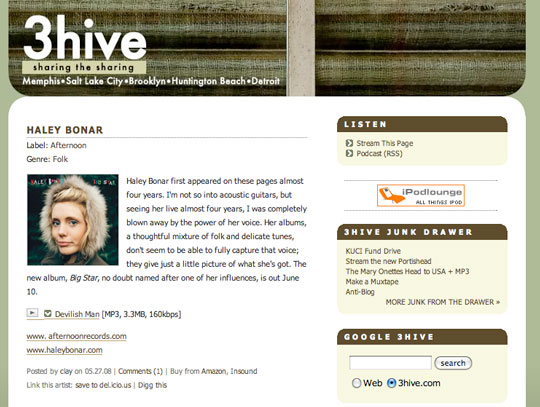
3hive.com: A great blog-style listing of free iPod-compatible songs offered by record artists and labels in an attempt to entice full-album purchases. Songs are in the MP3 format in a variety of bit-rates generally ranging between 128kbps and 192kbps.

Download Free music

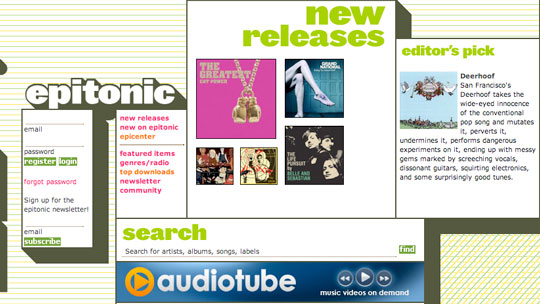
Epitonic.com: Offers highly professional, artist-focused presentation of free digital music downloads in MP3 format, with biographical details and short previews for songs across a narrow collection of genres.

Download Music

Freekidsmusic.com
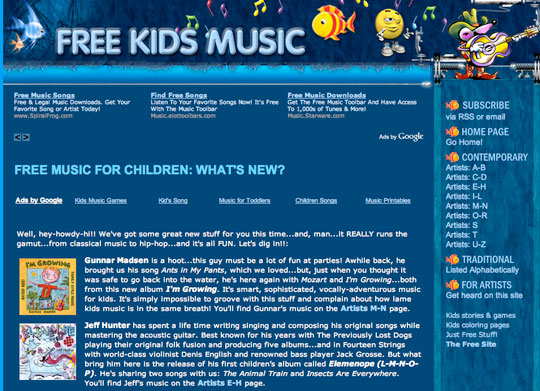
: Along with its sister site Freechildrensmusic.com, provides a large variety of free MP3 format songs for young listeners.

Download MP3 Music

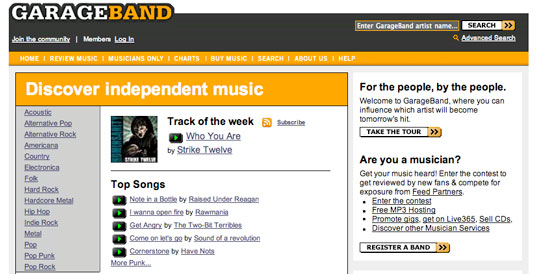
Garageband.com: Not to be confused with Apple’s music creation application of the same name, Garageband.com collects and provides popularity charts of independent music, featuring over 125,000 bands.

Freekidsmusic - Download music

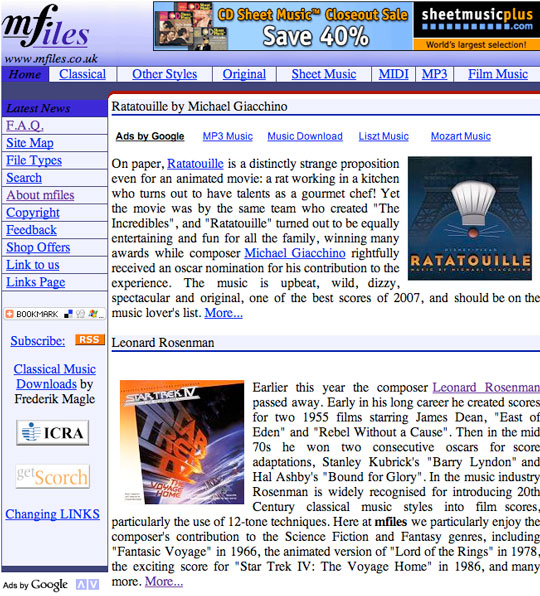
MFiles.co.uk: Provides free downloads of well-known classical music in MP3 format.

MFiles.co.uk - Download classic music

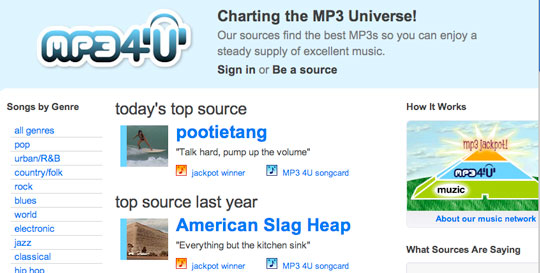
MP34U.com: A clean, professionally designed interface to individual free songs sorted by genre, selected by site “sources” who pick and post only music they like.

MP34U.com - Download music

Music.download.com: The music-dedicated expansion of popular software download site Download.com offers free full-length MP3 songs across all major genres, even including Children’s, Spoken Word, Comedy, Folk and Religious tracks. Most tracks are indie.

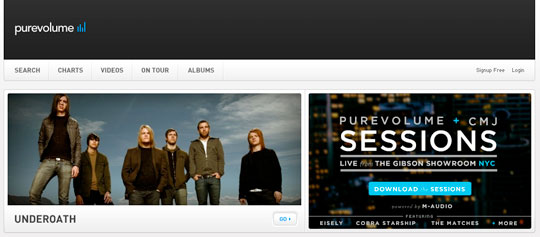
PureVolume: Offers over 100,000 free songs for download, and captured many of the best users of what used to be MP3.com (before it was scrapped, sold, and completely changed).

PureVolume - Download music

RCRDLBL: An exclusively-online record label which provides free MP3 downloads of exclusive music from emerging artists.
Of course, if you can’t find the song you’re looking for on one of these free sites, you can always visit Apple’s iTunes Store or Amazon’s MP3 Store and make a purchase there. Though these aren’t as cheap as some of the questionable international sites listed in the prior section, they are an entirely safe and legal way to get access to over a million songs.

Free Music with a Catch: Ad-supported Sites
Years ago, the most common source of free music for your listening enjoyment was the radio. Radio stations were able to broadcast music from a wide range of artists at no cost to the listener. Instead they made money through advertising services. The “price” a listener paid to listen to free music in those days was having to endure listening to advertising interspersed with the music.
Recently, some web sites have begun to offer a similar business model: You can download free music, but this is either done through a client or web site with very proactive advertising (as opposed to the standard advertising on most web sites), or the music tracks themselves contain brief advertising spots placed at the beginning of each track.
Unfortunately, most of the sites that offer these types of services, such as SpiralFrog and Ruckus Networks (for U.S. college students) only offer their downloads in a Windows Media Audio DRM-protected format that is incompatible with iTunes or the iPod (or ironically, even the Microsoft Zune). Further, these tracks may not be burned to a CD. These sites are therefore generally of no value to iPod owners.
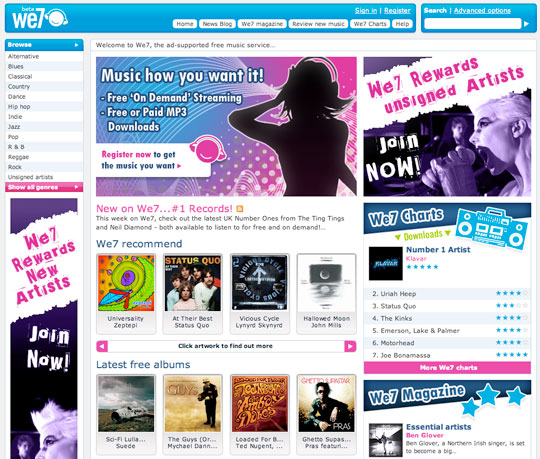
A notable exception is We7, a UK-based ad-supported site whose founders include Peter Gabriel. We7 provides downloads in a DRM-free 192kbps MP3 format, with the catch being that each track has a 6-12 second advertisement grafted onto the front-end. Ad-free tracks may be purchased outright, and We7 also offers a credit system whereby you can convert some of your tracks to ad-free versions once they have been in your library for 28 days or more. Since these tracks are in an open MP3 format, they can be played on just about any digital media player available.

We7 - Download iPod Video

Although primarily a paid subscription music service, eMusic.com provides a free ad-supported music service as well. In this case, the advertising is directed at the user via the ALOT toolbar which is installed in your web browser (compatible with IE6, IE7 and FireFox 2 only).

Downloading Free Podcasts: Radio for your iPod, iPod nano.
In addition to free music for your iPod, you can also download “Podcasts,” short radio-style programs produced by individuals and companies around the world. Many of these podcasts include music selections, and some are even dedicate to showcasing independent artists and providing music commentary and review.
While podcasts were originally organized in several independent podcast directories out on the Internet, the ITunes Store now includes an extensive catalog of podcasts which you can subscribe to directly via iTunes completely for free. Podcasts available through iTunes include both audio and video podcasts, and cover an extensive range of topics. Basically, anybody who has anything to say on a regular basis can create their own podcast and get “on the air” via iTunes quite easily.
A selection of music-specific podcasts can be found right in iTunes in the Music Podcasts Directory, which includes a comprehensive selection of music-related podcasts from music reviewers, traditional radio stations, and even directly from both small independent and more mainstream artists. So it helps you download your favorite iPod Videos

Music Podcasts Directory -Download iPod Video

2010年8月11日星期三

How to download free youtube, yahoo, google, stream video for free

This step-by-step guide will show you how to download video from YouTube, Google Video, Yahoo and other video download website. Videos come from those websites are streaming videos. You need special software to capture steaming videos. Today we take YouTube video for example, write a guide about how to download streaming video to computer for free. This guide provides two methods:
1. with free online flv converter;
2. with firefox
This guide is also fit for other video websites as follow video list:
http://www.aiseesoft.com/article/free-download-video-list.html
3. How to transfer the downloaded youtube video to iPod PSP Zune iPhone Cell Phone and other MP3/MP4 player?

1. With free online flv converter
Step1. Open this website: http://vixy.net/. It's a free online FLV converter.
Step2. Then go to YouTube http://www.youtube.com and find a video that you love. Copy the URL that in the Red box. Like this format: http://www.youtube.com/watch?v=sdUUx5FdySs

free download youtube guide - download youtube to iPod, youtube downloader, convert youtube to zune

Step3. Paste your video file URL to the input box (figure as follow), choose the right format you want. If you want to edit the video, AVI is a good choice. And MP4 is fit for iPod, PSP, Zune, Apple TV and other MP4 players. This online converter also can rip audio to MP3. Then wait for the conversion.

free download youtube guide - download youtube to iPod, youtube downloader, convert youtube to zune

Step4. When the conversion finished, we got the download link of the output video. Click the download link to download the video and save in your computer (remember where you save it in). Done.

free download youtube guide - download youtube to iPod, youtube downloader, convert youtube to zune

2. With Firefox
If you have Firefox browser, you can follow these steps.
Step1. Install the videodownloader extension. This is a free plug-in for Firefox. It enables you capture streaming video from website. Here is the Download link:
https://addons.mozilla.org/firefox/2390
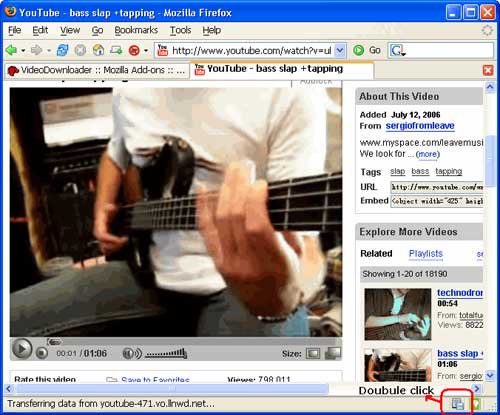
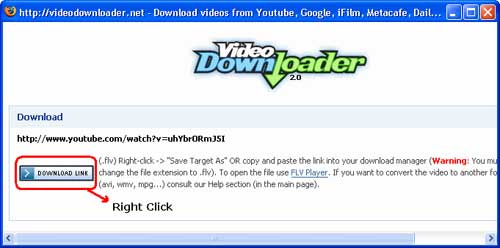
Step2. After installing videodownloader, restart Firefox. In the bottom right, you'll see a little box. Go to the video you want to download, double click that little box, and select download link. Then you could download the streaming video you want. (Note, you have to rename the file extension from “html” to “flv”)

free download youtube guide - download youtube to iPod, youtube downloader, convert youtube to zune

free download youtube guide - download youtube to iPod, youtube downloader, convert youtube to zune

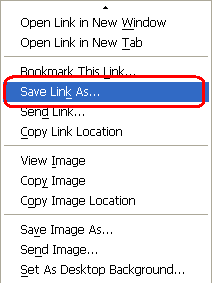
You have to rename the file extension from “html” to “flv” when you save the link. (Make sure your compute is show file extension)

free download youtube guide - download youtube to iPod, youtube downloader, convert youtube to zune

3. How to transfer youtube video to iPod PSP Zune Phone and other MP3/MP4 player?
For iPod: if your download youtube video already is MP4 video, drag it to your iTunes library (or click iTunes "file" -> "add files to library"), plug in your iPod to computer, and then select your iPod device on the left panel of iTunes, click "Movies" tab, check the videos you want to sync and click "Apply", done.
If your downloaded YouTube video is not MP4 video, you have to convert it to iPod format at first, take a look at this free iPod converter, it embeds an iPod manager that can convert and transfer YouTube video to iPod directly without iTunes, here is a step by step guide about it:
http://www.aiseesoft.com/article/ipod-movie-converter.html
For PSP: PSP is the same as iPod, they are both support MP4 video, if you have converted the YouTube video to MP4 with above method, you can copy the MP4 video directly to the "Video" folder in your memory stick (if there is no "Video" folder in your memory stick, you can create by yourself). If your downloaded YouTube video is not MP4 video, you have to convert it to PSP format at first, take a look at this PSP Movie converter, it t can convert and transfer YouTube video to psp directly, fully support all firmware version of PSP, here is a step by step guide about it:
http://www.aiseesoft.com/article/psp-movie-converter.html
For Zune: Zune can play WMV video, if you have converted your download YouTube video to zune format, then open the Zune software, drag the wmv video to your Zune software, plug in your Zune to computer, and then Zune software should detect your Zune automatically, then click "Start to sync", the video will be transfered to Zune player.
If your downloaded YouTube video is not WMV video, you have to convert it to Zune format, take a look at this free Zune converter, it can convert video to Zune format, it can also convert YouTube video to MP3 for other player, here is a step by step guide about it:
http://www.aiseesoft.com/article/zune-movie-converter.html
For cell phone: Cell phone accepts 3GP video and MP4 video, just convert your downloaded YouTube video to the proper format, connect your cell phone to computer, and then copy the videos to your cell phone memory card. If you don't know how to convert video, take a look at this step by step guide:
http://www.aiseesoft.com/article/total-video-converter.html

2010年8月10日星期二

New iPod touch 2G Guide

A big surprise turn up at 9th Sep for all iPod fans – the new iPod touch 2G and Nano 4G released. It’s really lucky and exciting to get a new iPod Touch 2G. And in order to help iPod users to learn more about it, I collected some information for this new iPod touch 2G guide. And it also includes how to enjoy the multimedia on you new iPod touch 2G such as download free video to iPod, convert DVD to iPod and transfer music video from iPod to iPod and iPod to computer.

Price:
As expected, the biggest news with Apple's second-generation iPod Touch is its drastically reduced price. The 8GB version of the iPod Touch 2G is now $229 (down from $299), the 16GB is $299 (down from $399), and the 32GB is $399 (down from $499).

Size:
The new iPod touch 2G is smaller and lighter than the original, 3.5 inch touch-screen, measuring 4.1 by 2.4 by 0.33 inches and weighing 4.05 ounces. With its rounded edges, flush display and curved, more compact design, the iPod touch 2G is promised to be more comfortable to hold and more portable than ever.

New iPod Touch - size

Game:
iPod touch 2G users can choose from hundreds of gaming titles such as "Spore Origins" and "Scrabble" from Electronic Arts, and "Real Football 2009" from Gameloft available on iTunes or directly through the App Store application on the iPod touch. The App Store works over Wi-Fi, enabling users to browse, purchase and wirelessly download applications.

New iPod Touch - game

Battery and “Genius”
The new iPod touch 2G promises up to 36 hours of music playback or six hours of video playback on a single charge. It also works with the new iTunes 8 Genius feature, allowing users to automatically create playlists while on the go. These playlists can also be synchronized with iTunes 8 servers.

Others features in new iPod touch 2G
Build-in accelerometer for casual listening; more convenient volume control button on the edge; the newest improvements “Nike+iPod” which can help you track your workouts by slipping a Nike+iPod sensor into you Nike+ shoes.

Then, Let’s talk about how to enjoy multimedia on your New iPod touch 2G
Part 1: How to free download video to your new iPod Touch 2G.
I always download free video and music from Youtube and limewire.
Youtube streaming videos are all FLV formats, so you need to play the video with a flash player programe on your computer, and if you want to put them on your new iPod touch 2G, use a iPod video Converter to convert FLV to MP4 format.
I got this totally free Youtube downloader, just enjoy.
http://www.aiseesoft.com/free-youtube-downloader.html

Limewire is a fast and popular freeware working on Windows, Linux and Mac OS. Through the P2P (peer-to-peer) network, you can free download various video and audio files by keywords searching. Most of its video formats is MPEG, so convert them and transfer to your iTunes then iPod touch 2G.
http://www.limewire.com/

Part 2: How to convert DVD to iPod Touch 2G
The new iPod touch 2G can only play MP4 and H.264 video, but DVD movie is MEPG, MPEG-2 video and CSS protected, so you need an application to convert DVD to MP4 video, then sync it to iPod touch 2G via iTunes.

convert DVD to New iPod Touch

To complete Part 1 and Part 2 I recommend you an iPod studio pack which includes a DVD to iPod converter and video to iPod converter.
You can get familiar with the apps by using this detailed step by step guide:
http://www.aiseesoft.com/article/download-dvd-pdf-youtube-videoto-ipod.html

Part 3: How to convert files back to your computer and transfer between iPod
Because iTunes prevents you from copying music or video from the iPod touch 2G back to computer, so you need a special tool to do that.
Yamipod, Aiseesoft iPod to Computer Transfer, Sharepod, iDump
And then re-add it to your iTunes library and sync it to other iPod touch 2G.

Free Trial: Free download Aiseesoft DVD to iPod Suite

view the datail of ipod nano chromatic/touch 2 converter

2010年8月9日星期一

Apple is Run Like a Huge Startup

Apple’s Remote app is due for an update. But here’s why it hasn’t been updated: the person who wrote it is busy working on other things. Yes, the person, not the team.

Read the rest of this post on the original site

2010年8月8日星期日

Stalkers Exploit Cellphone GPS

Phone companies know where their customers’ cellphones are, often within a radius of less than 100 feet. That tracking technology has rescued lost drivers, helped authorities find kidnap victims and let parents keep tabs on their kids.

But the technology isn’t always used the way the phone company intends.

One morning last summer, Glenn Helwig threw his then-wife to the floor of their bedroom in Corpus Christi, Texas, she alleged in police reports. She packed her 1995 Hyundai and drove to a friend’s home, she recalled recently. She didn’t expect him to find her.

The day after she arrived, she says, her husband “all of a sudden showed up.” According to police reports, he barged in and knocked her to the floor, then took off with her car.

The police say in a report that Mr. Helwig found his wife using a service offered by his cellular carrier, which enabled him to follow her movements through the global-positioning-system chip contained in her cellphone.

Read the rest of this post on the original site

2010年8月6日星期五

How The Guardian is Pioneering Data Journalism With Free Tools

The Guardian takes data journalism seriously. They obtain, format, and publish journalistically interesting data sets on their Data Blog, they track transparency initiatives in their searchable index of world government data, and they do original research on data they’ve obtained, such as their amazing in-depth analysis of 90,000 leaked Afghanistan war documents. And they do most of this with simple, free tools.

Read the rest of this post on the original site

2010年8月4日星期三

How to upload videos to YouTube easily and quickly on Mac

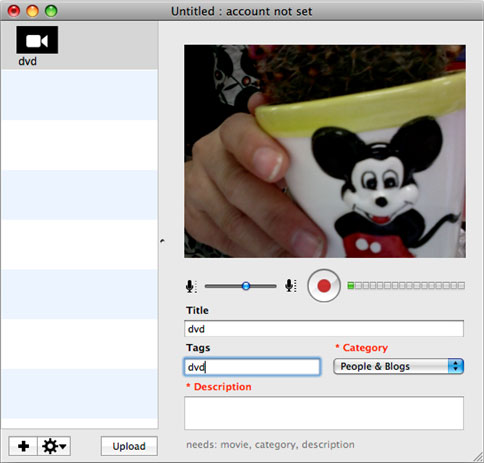
Google has released basic software called Vidnik which is the quickest, simplest way to make movies using the built - in camera on your Macintosh and upload those movies to your YouTube account. You must first sign up for a free YouTube membership to upload videos. You can use Vidnik to create a video diary, or just to quickly record a video comment to attach to an existing YouTube video. Vidnik works with the built-in video cameras on recent Macs, with Firewire video cameras, and with many USB video cameras.

Part 1, use Vidnik to Record video segments using your iSight camera and upload them to YouTube.

upload video to YouTube

To use Vidnik, run the app, then click the record button to start recording. Click it again to stop. Trim to just the golden moments you want to keep, as in the screen shot above. Fill in the required title, description, and so on. Click the upload button. That's it.

Part 2, Use Vidnik to upload videos to youtube
You can drag movies made in other programs onto Vidnik's column of movies, and then click the upload button. And to use another program to do a little post-production, use the Gear menu to show Vidnik's movie file in the Finder. Edit the movie in the other program, and then upload it.Vidnik can only support videos such as: 3GP, AVI, DAT, MOV, MP4, M4A, WAV, AAC. It does not support ASF, FLV, MPEG, RM, WMV, MP3, AC3.
You can use the video converter for Mac to convert your videos to the formats that Vidnik can run.
If you want to upload DVD to TouTube, you need to use DVD ripper to rip DVD to video formats supported by YouTube first. If you are Mac user, you can use this DVD ripper for Mac .

upload DVD to YouTube

2010年8月3日星期二

How to make iPhone Ringtones on Mac and Windows for FREE

I have many iPhone Ringtones on my iPhone, and I change them once one day. But I don’t buy them online. I just make iPhone Ringtones myself by Ringtone Maker Shareware. Actually, iPhone Ringtone maker is m4r Ringtone Maker, such as mp3 Ringtone Converter, WMA Ringtone Converter and WAV Ringtone Converter. There are also iPhone Ringtone Converter for Mac or iPhone Ringtone Creator Mac.

Here I will share how to make iPhone ringtones on Windows and Mac.
For Windows:
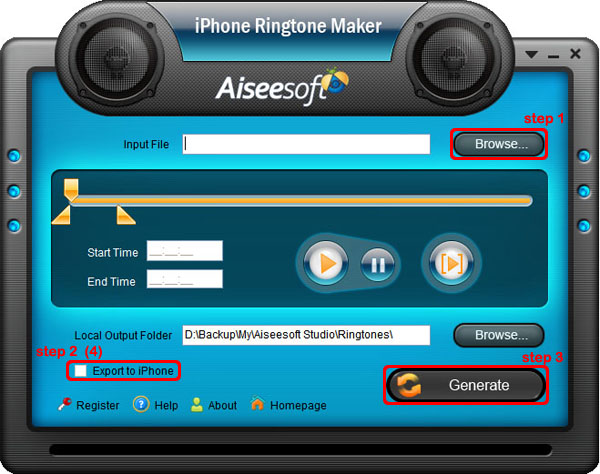
Firstly, you need download iPhone Ringtone Maker.

iPhone Ringtone Maker

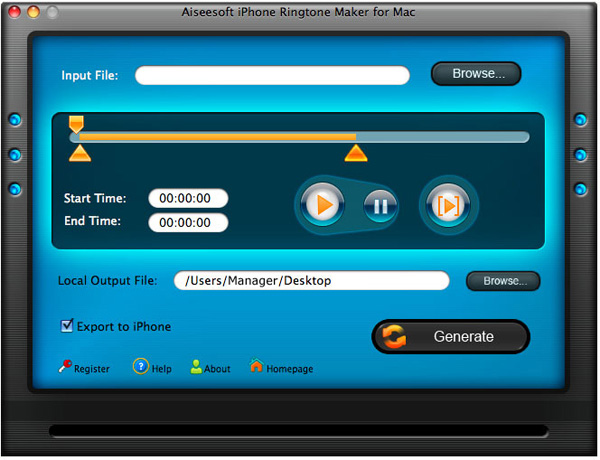
Step 1: Load Music
Click “Browse” on the right side of “Input File” to find your music that you want to make as your iPhone ringtone and click “Open” to load it into iPhone Ringtone shareware.
Step 2: Choose iPhone Ringtones
1. Drag your “Start Slider” to the beginning of the “Slider Bar” and “End Slider” to the end, then Listen iPhone Ringtone to listen your whole audio file.>br/>2. a. Drag the “Start Slider” to find where is the beginning of your ringtone and Drag “End Slider” to make an End of it.
b. Type the exact “Start Time” and “End Time” in the box to choose your ringtone.
3. ClickPre-listen iPhone Ringtoneto pre-listen your ringtone.
4. If you want to put your ringtone directly on your iPhone, just plug your iPhone to your computer and check “Export to iPhone” (4). If you just want to put it on your computer, click “Browse” on the right of “Local Output Folder” to find a place to put it.
Step 3: Generate iPhone Ringtones After you have done the 3 steps, just click “Generate” to make your iPhone ringtones.

For Mac:
If you are a Mac user, you need to find iPhone Ringtone Converter for Mac or iPhone Ringtone Maker for Mac.
Here I have one for you, just download this iPhone Ringtone Maker for Mac.

iPhone Ringtone Maker for Mac
The process of making your own iPhone ringtone on Mac is the same as on Windows.
Hope you enjoy this DIY process.

2010年8月2日星期一

Where to Download iPhone and Apple TV Firmware Files

Where to Download iPhone Firmware Files
Below you can find the direct links to the iPhone Firmware Files for every released firmware version. Please note that if you use Safari you must disable the auto unzip feature. It may be easier to just use Firefox!
iPhone Firmware 1.0.0: iPhone1,1_1.0_1A543a_Restore.ipsw
iPhone Firmware 1.0.1: iPhone1,1_1.0.1_1C25_Restore.ipsw.
iPhone Firmware 1.0.2: iPhone1,1_1.0.2_1C28_Restore.ipsw.
iPhone Firmware 1.1.1: iPhone1,1_1.1.1_3A109a_Restore.ipsw.
iPhone Firmware 1.1.2: iPhone1,1_1.1.2_3B48b_Restore.ipsw.
iPhone Firmware 1.1.3: iPhone1,1_1.1.3_4A93_Restore.ipsw.
iPhone Firmware 1.1.4: iPhone1,1_1.1.4_4A102_Restore.ipsw.
iPhone Firmware 2.0.0 (2G): iPhone1,1_2.0_5A347_Restore.ipsw.
iPhone Firmware 2.0.0 (3G): iPhone1,2_2.0_5A347_Restore.ipsw.
iPhone Firmware 2.0.1 (2G): iPhone1,1_2.0.1_5B108_Restore.ipsw.
iPhone Firmware 2.0.1 (3G): iPhone1,2_2.0.1_5B108_Restore.ipsw.
iPhone Firmware 2.0.2 (2G): iPhone1,1_2.0.2_5C1_Restore.ipsw.
iPhone Firmware 2.0.2 (3G): iPhone1,2_2.0.2_5C1_Restore.ipsw.
iPhone Firmware 2.1.0 (2G): iPhone1,1_2.1_5F136_Restore.ipsw.
iPhone Firmware 2.1.0 (3G): iPhone1,2_2.1_5F136_Restore.ipsw.
iPhone Firmware 2.2.0 (2G): iPhone1,1_2.2_5G77_Restore.ipsw.
iPhone Firmware 2.2.0 (3G): iPhone1,2_2.2_5G77_Restore.ipsw.

Where to Download Apple TV Firmware Files.
Below you can find the direct links to the Apple TV Firmware Files for every released firmware version.
Apple TV Firmware 1.0.0: OS-dot-DMG 1.0.dmg.
Apple TV Firmware 1.1.0: 2Z694-5248-45.dmg.
Apple TV Firmware 2.0.0: 2Z694-5274-109.dmg.
Apple TV Firmware 2.0.1: 2Z694-5387-25.dmg.
Apple TV Firmware 2.0.2: 2Z694-5428-3.dmg.
Apple TV Firmware 2.1.0: 2Z694-5485-1.dmg.
Apple TV Firmware 2.2.0: 2Z694-5499.dmg

2010年8月1日星期日

Facebook’s IPO Waiting Game Gets a Little Longer–”Probably” Not Going Public in 2011

Perennial question for Facebook CEO Mark Zuckerberg: When are you going public? Perennial answer: Someday, probably. But I’m not in a rush.

Now a new report from Bloomberg puts a finer point on it. Citing three anonymous sources, it says the social network will “probably” push off an IPO until 2012.

That certainly sounds plausible. It’s not clear that Facebook needs to raise any cash for operations, given the booming ad business it has finally gotten off the ground. And more money will be coming in the door this year when the company launches its own payment/credits system for virtual goods.

Zuckerberg has structured his board, and ownership structure, so he retains control of the company, so investors who would agitate for an IPO don’t have much leverage. And if the company does want to sell shares, it has plenty of options in the private market.

Assuming Bloomberg’s story is correct, there is at least one significant ripple effect here. If Facebook doesn’t IPO for another 12 months or more, that reduces the pressure on social games giant Zynga to go public too.

The two company’s finances are tightly intertwined–for now, Facebook represents most of Zynga’s revenue, and Zynga is a big chunk of Facebook’s business. Which means that whoever goes public and opens their books first is also opening the other company’s books to some degree. There’s an interesting game of chicken going on there, and it’s worth keeping an eye on.

Meanwhile, if you’re dying to buy Facebook on the open market, you may be able to do it in a roundabout way next year anyway. Russian investor Digital Sky Technologies, which bought a chunk of Facebook last year, is reportedly planning on a 2011 IPO.