2011年10月30日星期日

Aiseesoft's Newly Updated iPad Converter Suite

Aiseesoft, a top-ranking Windows and Mac DVD/video converting software provider, brings a new update to the professional iPad transferring and converting software product - Aiseesoft iPad Converter Suite. This amazing iPad assistant application is the best selling product of its kind and has received high recognition.

Now the updated iPad Converter Suite owns a redesigned interface, which could bring users a much better user experience. Also the converting and transferring functions have been enhanced. This software supports more input and output video formats.

Aiseesoft iPad Converter Suite is packed with iPad Video Converter, DVD to iPad Converter and iPad Transfer. The powerful converting features enable iPad users to convert all DVD and video files to iPad compatible formats (MP4, H.264, M4V, MOV, etc.). Then users can conveniently enjoy the perfect output video files on iPad anywhere and anytime. Moreover, this iPad Converter provides users with powerful video editing features. With it, users can trim video, crop video frame, add watermark, adjust iPad video effect, and so on.

The embedded iPad Transfer is the professional file transfer software for iPad. This application is able to import local movies, songs and images to iPad for enjoyment, and export iPad video/photo/music files to computer for backup. Then iPad users could conveniently handle with iPad files. For instance, customers can enjoy latest films on iPad, share iPad files with friends, and backup important iPad files.

To sum up, Aiseesoft iPad Converter Suite is one of the best iPad assistant software on the market. It can help iPad users convert DVD/video to iPad and transfer files between iPad and computer.

System Requirements
OS Supported: Windows NT4/2000/2003/XP and Windows Vista, Windows 7
Hardware Requirements: 800MHz Intel or AMD CPU, or above; 512MB RAM or more

2011年10月28日星期五

New Beginning of Nokia: Lumia 800 and Lumia 710

Nokia released its first Meego smart phone Nokia N9 at Nikia Connection 2011, Singapore, 21st June, 2011. Four monthes later, at London, Nokia introduced its first two smart phone using Windows Phone, which named after lumia series at Nokia World 2011. The Nokia Lumia 800 is for high-end market and Nokia lumia 710 is for young people with low price of course. This aritcle aims to introduce this two new Nokia products to you and hope you can give Nokia a reunderstanding after its cooperation with Microsoft.

Lumia 800 is the first Nokia cell phone using Windows Phone Mango system and its appearance is almost the same as Nokia N9 with Meego: curved screen, one piecce polycarbonate technology, 16GB memory space and 1540 mAh battery. Lumia 800 has a 8 megapixel camera, the same as N9. The different with Nokia N9 is the Lumia 800 has a 3.7 inches screen with a resolution of 480*800 and has a 1.4 Ghz single-core Qualcomm MSM8255 processor and its RAM is 512MB.

It is difficult to identify lumia 800 and N9 from outside appearance. It is understandable that N9's unique sliding operation and polycarbonate technology received the world's attention, but the sales performance is not that good. Nokia will not waste this nice design, it is a nice idea to combine the appearance of N9 and the new smart phone platform.

First let us talk about Lumia 800's screen. Its 3.7 inches AMOLED screen is the best one that I have ever seen on WP7 mobile phones. In the dark room, it is still colorful, real and without many rendering. Nokia 800's shell is one piece polycabonate and its color is the material's color. It is impossible for Nokia 800 to loose color. The curved screen design of N9 helps Nokia 800's sliding operation. People who use mobile phones with Windows Phone know that you needs to slide to switch the main screen and the menu. Nokia lumia 800's screen is much better than other manufactures.

Nokia 800 does not use the 3 interface of N9 and they just use the Microsoft Metro interface without any change. I believe that Nokia does not want their first cell phone with WP7 has too many differences with other phones with WP7 from other manufactures, that avoid the division of Android. Altough the UI has no big difference with other WP7 phones, Nokia 800 is much better on operate effect and full touch operation because of the 1.4 GHz CPU.

All the Windows Phone products has a physical camera shortcuts button on the right side of the body, so does Nokia lumia 800. And the resolution, 480*800, is also set by Microsoft. I think Microsoft does not want their products as division as Android. So they set a series of settings for Windows Phone 7 and the camera shortcuts button and screen's resolution are listed.

Talking about the hardware, we need to notice that the three button under the screen. They have nothing special but because of them, the camera of N9 disappear. This is also because the system's limitation, WP7 Mango does not support video call.

The same outside appearance as N9, Nokia lumia 800 has a totally different system with it. As a strategic partnership of Microsoft, Nokia's Windows Phone 7 mobile phone has some special features of course. To users, Nokia car is one of these features. Nokia Public Transport app provides more than 430 cities' bus information around the world, including 45 cities' to-the minute updates of bus and train lines.

Nokia 800 presets ESPN program, which can show the time, schedule and results, etc. It can also be fixed on the strat screen and refresh the results easily.

Another features is about the music: Mix Radio, Nokia's music service. It is a kind of radio app. You can enjoy the free music on line without register or subscribe. However, Mix Radio is only available in few countries.

In addition, Nokia also published Nokia Pulse, Nokia users can share location and photos privitely and add location info to important contact. Nokia also showed us Nokia Live View. It allows Nokia users to point a building and street and the name of the building and street will appear on the map, users can get the information of the shop, restaurant and other info once they click the name.

In the system, we also see that Nokia's contact move function. It is a app that first appear on Symbian, now they brings it to its Windows Phone mobile phone. Compare with other WP7 phones, Nokia's has not many differences and the combine of Nokia software store and Microsoft Marketplace was not mentioned, also Wifi Hotspot was not appear in this system.

Although we believe that Windows Phone system, one day, will match google android and apple iOS, now Windows Phone's system is still not complete. The cooperation of Nokia and Microsoft will speed up the process, but two mobile phones can not do all the tings. Just like Nokia's saying on the conference, it is a new beginning and they need time to solve problems from all aspects.

Hello, my name is Pele. I'm interested in mobile phones and other electronic devices such as Apple iPod, iPhone, iPad. I am also a software editor about backup iphone sms, total video converter and hope my article can help you. Thanks.

2011年10月27日星期四

Aiseesoft Updated iPad Converter Suite for Mac Supports iPad 2 and iOS 4.3

Aiseesoft iPad Converter Suite for Mac is a professional iPad assistant software presented by Aiseesoft. This Mac iPad Converter Suite is packed with iPad Video Converter for Mac, DVD to iPad Converter for Mac, and iPad Manager for Mac. Now, we have updated the built-in iPad Manager for Mac to be highly compatible with iPad 2 and the latest iOS 4.3. After the update, this iPad Transfer for Mac can help users transfer movie, music and photo files from iPad (iPad 2) to Mac for backup, and add local files to your iPad (iPad 2).

Moreover, this iPad Converter Suite for Mac can assist users to convert DVD and video files to iPad compatible MPEG-4, H.264/MPEG-4 AVC, MOV, M4V, AAC, MP3, WAV, AIFF, and M4A video and audio formats with super high converting speed. This Mac iPad Converter Suite can bring users outstanding output video quality. After the conversion, you can transfer the output file to iPad (iPad 2) with the help of iPad Transfer for Mac. Then, you can conveniently enjoy them with your iPad on the road.

Also, the Mac iPad Converter Suite possesses powerful video editing features to help you customize output video effect. For instance, you can convert a specified video segment by cutting it off, cropping video frame, watermarking video, modifying video effect, and joining different source videos together.

To sum it up, Aiseesoft Mac iPad Converter Suite is a multi-functional iPad assistant tool to help iPad users convert DVD/video to iPad and transfer video/audio/image files between iPad and Mac.

System Requirements

OS Supported: Mac OS X v10.4 or above

Hardware Requirements: 512MB RAM, Super VGA (800×600) resolution, 16-bit graphics card or higher.

About Aiseesoft Studio

As a professional multimedia software provider, Aiseesoft Studio is dedicated to developing the best multimedia desktop applications to help the Windows and Mac users smoothly convert, edit and transfer various video/audio files. In order to meet users' various requirements, Aiseesoft Studio constantly brings in new ideas, technologies, etc. To Aiseesoft Studio, users' satisfaction is a consistent pursuit.

2011年10月26日星期三

Aiseesoft's Newly Updated DVD Converter Suite Supports More Portable Devices

Recently, many wonderful tablet computers and smartphones, especially some Android devices, have come into the market and are rapidly gaining in popularity. So to help these portable device users have a wonderful experience enjoying videos, Aiseesoft has decided to update their DVD Converter Suite.

After the update, this professional DVD Converter Suite is able to convert all popular video files and rip DVD to nearly all video and audio formats, like MP4, H.264, AVI, WMV, FLV, MKV, 3GP, VOB, DivX, MOV, M4A, AAC, WAV, MP3, etc. And you can define your own output video/audio format supported by your portable devices. Now, this DVD Converter Suite supports iPad (iPad 2), iPhone (iPhone 4), iPod, BlackBerry (PlayBook), Android phones (HTC, Motorola, Sony Ericsson, etc.), tablet computer (Xoom, Galaxy Tab, LG G-Slate, etc.), and other popular portable devices.

Aiseesoft DVD Converter Suite is packed with Total Video Converter, DVD Ripper and iPod to Computer Transfer. Both the Total Video Converter and DVD Ripper own powerful video editing features. For instance, you can crop video frame, watermark video, cut off any segment from video/DVD source, join videos together and so on. With it, you can get a personalized output video. The built-in iPod to Computer Transfer is a powerful file transferring software to transfer iPod/iPhone/iPad movie, music and image files to computer for backup.

In summary, Aiseesoft DVD Converter Suite is specially optimized for the up-to-date portable devices. It can convert DVD and video files to popular video formats and transfer video/audio/photo from iPod to computer.

Apart from the all-in-one DVD Converter Suite, Aiseesoft specially prepares the iPad 2 assistant software, such as iPad 2 Video Converter and DVD to iPad 2 Converter for iPad 2 users. You can download the easy-to-use and reliable DVD video converter software free and have a try.

System Requirements

OS Supported: Windows NT4/2000/2003/XP and Windows Vista, Windows 7

Hardware Requirements: 800MHz Intel or AMD CPU, or above; 512MB RAM or more

2011年10月25日星期二

Aiseesoft Brings You the Best iPhone Mate Software - iPhone Transfer Platinum 0 0

To help iPhone users deal with various operations on iPhone documents, such as converting files to iPhone, transferring files between iPhone and PC, etc., with only one assistant tool, Aiseesoft brings customers the wonderful iPhone mate - Aiseesoft iPhone Transfer Platinum. It can help users conveniently handle with all iPhone files with only one application.

This professional iPhone transferring software is able to export all iPhone files (music, movies, pictures, TV shows, Podcast, iTunes U, eBooks, Camera Roll, voice memos, camera shot) to computer and iTunes. Also, it can transfer music, video, ePub, PDF, image files from computer to iPhone for enjoyment. Moreover, this iPhone Transfer Platinum supports copying iPhone SMS and Contacts to computer for backup so users don't need to worry about losing important contact information and messages.

Besides transferring features, this iPhone Transfer also owns the powerful converting features. With it, users can convert Blu-ray disc, DVD and video files to iPhone compatible formats (MP4, M4V, MOV, H.264, etc.). And, this software can help customers customize output video effect. For instance, users can trim video length, crop video frame, add watermark, and even adjust video brightness, saturation, contrast, hue and volume. This iPhone Transfer Platinum will provide users with the perfect output video with the best output quality.

To sum it up, Aiseesoft iPhone Transfer Platinum is the best choice as an assistant mate for iPhone. With it, users can convert Blu-ray/DVD/video to iPhone, and transfer files from iPhone to computer, and from computer to iPhone conveniently.

Also, Aiseesoft has prepared the assistant software for iPad users - Aiseesoft , which can convert Blu-ray, DVD and video files to iPad and transfer files between iPad and PC.

System Requirements

OS Supported: Windows NT4/2000/2003/XP and Windows Vista, Windows 7
Hardware Requirements: 800MHz Intel or AMD CPU, or above; 512MB RAM or more

2011年10月24日星期一

Share: How to Convert DVD to PSP/PS3, convert Videos to PSP/PS3

We all have known that PSP is an excellent game player. However, we can’t play games all the time; We can achieve other aims with it, such as watching movies, appreciating music…because it has such a big screen for video and a clear earphone for music. For the reason above, I will introduce a practical method to rip DVD movies, convert video files to MP4 format for our PSP. At the same time, we can extract audio from DVD/video files to MP3, AAC PSP audio formats for PSP music.
Now I will share with you a practical tool to solve the problem mentioned above: Aiseesoft PSP Movie Creator. It is the combination of Aiseesoft DVD to PSP Converter and Aiseesoft PSP Movie Converter.

PS3 users share the same feast!

This article includes two parts.
Part 1: How to enjoy DVD on PSP/PS3
Part 2: How to convert Videos for PSP/PS3

Part 1: How to convert DVD to PSP/PS3.
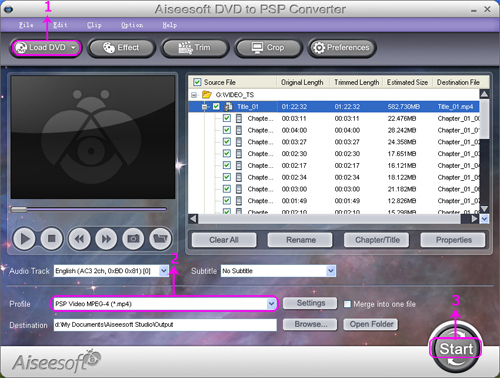
Step 0: Download Aiseesoft DVD to PSP Converter and run it.

Step 1: Click “Load DVD” button to load your DVD.


Note: This professional DVD to PSP Converter can load three DVD source, you can load your DVD from DVD drive, DVD folder in your PC and also IFO file.

Step 2: Select the output video format you want from the “Profile” drop-down list.
Step 3: Click “Start” button to start your conversion and in a short while it will be finished.

Some powerful functions such as "Effect", "Trim", "Crop" are all available.

Part 2: How to convert Videos to PSP/PS3.

Step 0: Download Aiseesoft PSP Movie Converter and run it.

Step 1: Click “Add File” button to add your movie.

Step 2: Select the output video format you want from the “Profile” drop-down list.
Step 3: Click “Start” button to start your conversion and in a short while it will be finished.

Some powerful functions such as "Trim", "Crop", "Snapshot”,"Merge" are all available.

Tips:
In the “Setting” list, you can choose different “audio bitrate”, “video bitrate”. The higher bitrate you set, the more high-fidelity video and music you enjoy on your PSP or PS3.

Key Functions-----Apply to Aiseesoft DVD to PSP Converter and Aiseesoft PSP Movie Converter

"Trim" function ------Split the DVD / video to your favorite edition
There are three methods to set trim time:
Method 1: Enter the start time in the Start Time box and click OK, then enter the end time in the Set End Time box and click OK.
Method 2: Drag the scissors bars under the preview window when you want to trim, then the time will be shown in the Start Time box and End Time box for your reference.
Method 3: Click "Trim From" button when you want to begin your trimming. Click "Trim To" button where you want to stop your trimming.

After you set trim time, the length of the captured clip will be shown in the Select Length box for your reference.

“Merge” function----Join the videos into one file.
Select the videos that you want to join, and then pick “Merge into one file”. After conversion, these chapters will be saved into one file.

2011年10月23日星期日

How to convert DVD to iPod/iPhone/Sansa/PSP/Zune/iRiver/Google Phone/Cell Phone, etc. on Mac

Many people like enjoy movies at home and they have piles of DVDs. So do I. I like watch lastest movie on my new Mac and it is wonderful. However, I always break and lose my DVDs and I was really sad because they cost most of my money. Luckily, I find a way to store my DVD movies on my new Mac computer and evern put it on my iPod because I use a DVD Ripper for Mac and it can rip DVDs to so many video formats, such as AVI, MP4, MOV, MKV, WMV, DivX, XviD, MPEG-1/2, 3GP, 3G2, VOB and so on.

To do this you must have a nice dvd ripper for Mac. So I find Aiseesoft DVD Ripper for Mac

OK, let’s do it.
Step 1. Download and install Aisesoft DVD Ripper for Mac.

For Intel

For Power PC

Step 2. Load you DVD.
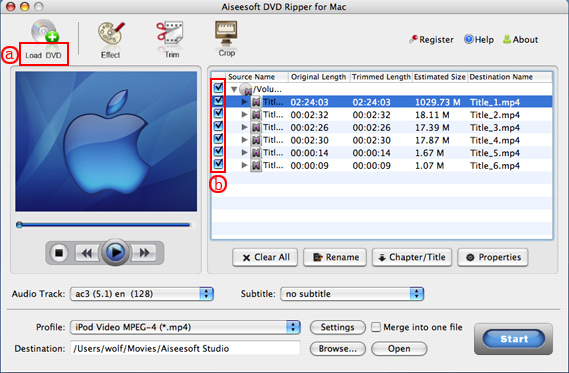
Click the “Load DVD” button(a), find the DVD folder of the movie you want to add from your DVD-ROM, and Click “Open”.


Tick the check boxes(b) before the titles and chapters that you want to rip.

Step 3. Chose output profile and settings.
Selecting output format is really easy, you can chose your output format according to your devices players and the default setting works great.

For a veteran of digital player, you could customize your own settings by clicking “Settings” button to chose your own video resolution, frame rate, bit rate, encoder, etc.


Tips: Sample rate (Hz) = any value up to 48000 (higher value = better sound quality = bigger file)
Bitrate (kbps) = any value up to 160 (higher value = better sound quality = bigger file)


After setting your own output and settings you can click “Start” button to start your conversion. (The time of the conversion depends on your DVD and the settings you chose.)

Do a few more clicks to make your movie more enjoyable.
1. Trim


If you want to rip only a part of the DVD movie, please click “Trim” button and drag the “Start trim slider” to set the start time and “End trim slider” to set the end time.(a). You can also do that by clicking the “Start trim button” and “End trim button”(b). The third way you do that is set the exact Start/End time at the right of the pop-up window and click “OK”.

2. Crop
If you want to remove the black edges or you want to rip a certain area of your video, please click the “Crop” button. You can do this either by drag the frame around the movie (a) or set the crop value: “Top, Left, Bottom, Right”.(b). Another way to do that is choose mode from “Crop Mode”(c).
Aiseesoft DVD Ripper for Mac also allows you to choose the output aspect ratio above the crop pane, “Keep Original, full screen, 16:9 and 4:3” are available.


3. Effect
If you want to adjust the effect of your movie, please click the “Effect” button and a pop-up effect window will appear. It allows you to edit your movie’s effect including “Brightness, Contrast, Hue, Saturation and Volume”.

4. Merge into one file/audio track/subtitles
If you would like to put several titles and chapters into one output file, please tick the check box of the “Merge into one file”.
You can choose audio track and subtitles you like according to what you prefer and the DVD supports.

Follow what I said above I hope you could enjoy your DVD movies on your Mac and also on your iPod and other portable players